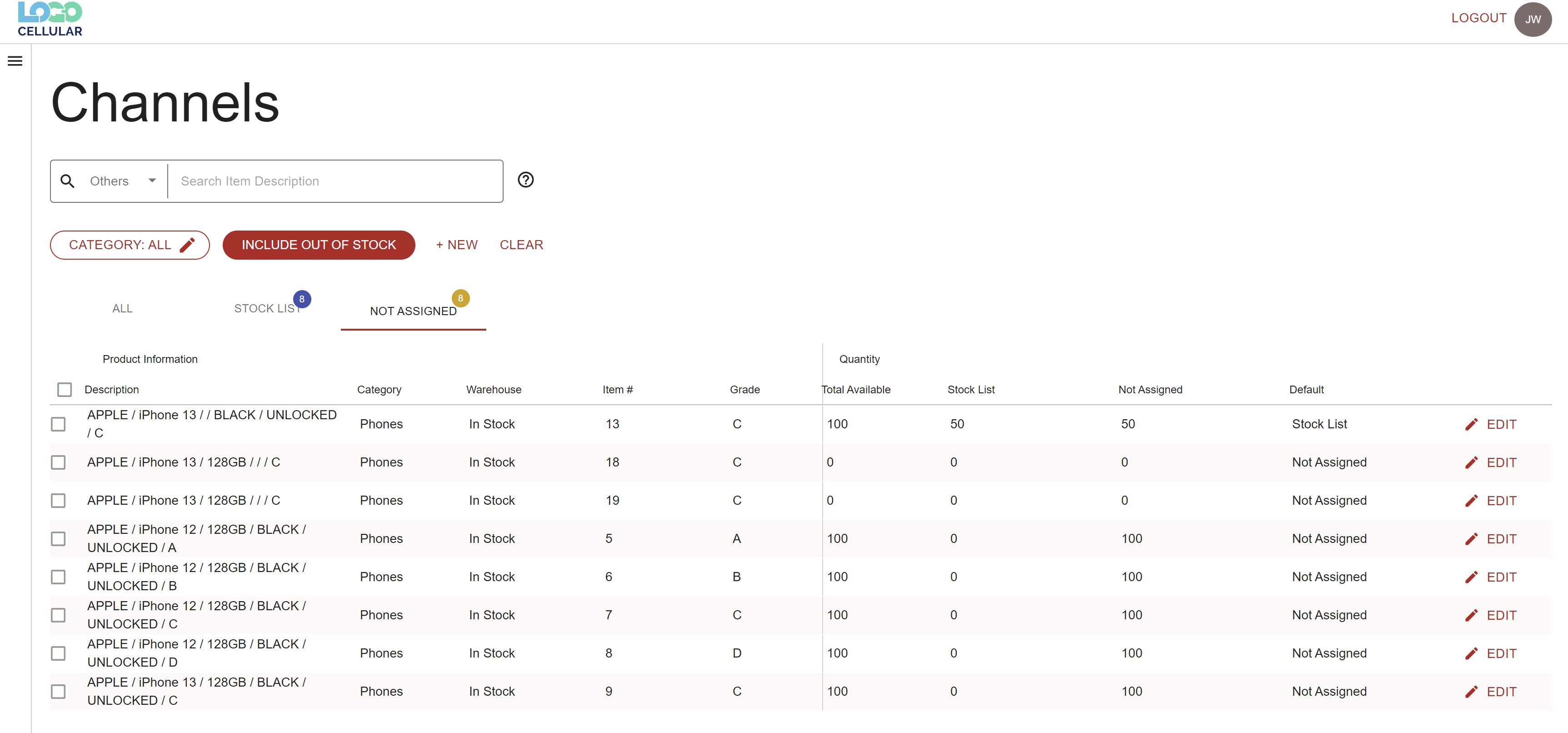
This video and step-by-step article will show you how to use the Channels page to move inventory onto your Stock List, where your customers can see it and purchase. You will also learn how to take inventory off of your Stock List if you want to hold inventory back.
1. Start on your Channels page.
2. Click on the Not Assigned tab to see which items you need to move to the Stock List.
3. Select the items you want to assign to your Stock List.
4. Click on the Update Default Channel button to update items in bulk.
5. In the pop-up, you will see the status of items you selected. Use the dropdown to select Stock List. You can also use this pop-up to take items off the Stock List if you would like to show fewer items.
6. You can also check the box to move all of your selected items onto the Stock List.
8. On your Channels page, you can also click Edit next to any item to assign that item to a channel.
9. When you click Edit, a pop-up will allow you to assign specific amounts of that item to the Stock List (or take off the Stock List).
10. You can use the dropdown to assign any new quantities of that item to a specific channel.
12. You will get a notification that you successfully assigned inventory to a new channel.